Create an AI-Powered Summary Based on a Template
Meeting Insights allows you to generate AI-powered summaries that conform to predefined layout templates. This feature is particularly valuable for organizations that require meeting summaries to adhere to a specific structure. For example, your organization may want the summary to include the sections 'Meeting Agenda', 'Main Concerns', and 'Wishful Goal'.
The available templates are determined by your organization's Meeting Insights administrator.
If multiple templates are available, you can select more than one for a single AI-generated summary. If you select multiple templates, Meeting Insights generates separate summaries for the same meeting recording, each formatted according to a different template.
Additionally, some templates may include user-input fields that are added as sections (headings) in the AI-powered summary. Some fields may be mandatory ('required') or optional. You can either manually type information in the fields and/or import text from a file. This may be useful if you reuse text.
|
●
|
AI-powered summaries based on templates are available only if enabled by your organization's Meeting Insights administrator. |
|
●
|
The summary is generated by an AI model, which may sometimes generate inaccurate information. Therefore, it's recommended that you review the summary and edit it if required to ensure accuracy and relevance before sharing it with others. |
|
●
|
It may take several minutes to generate the AI-powered summary. |
|
●
|
If you're the owner of the meeting recording, you can always trigger AI to generate a summary. Participants of the meeting recording can also trigger it if your organization's administrator has enabled such functionality. |
|
●
|
When you run AI, it also generates a transcription of the meeting. |
|
➢
|
To run AI-powered summary based on templates: |
|
1.
|
In the Navigation pane, click  All Meetings, and then Click the meeting recording name; the Player page appears. All Meetings, and then Click the meeting recording name; the Player page appears. |
|
2.
|
Select the Recap tab, and then click Templates. |
|
3.
|
From the 'Language' drop-down list, select the language of your meeting recording. |
|
4.
|
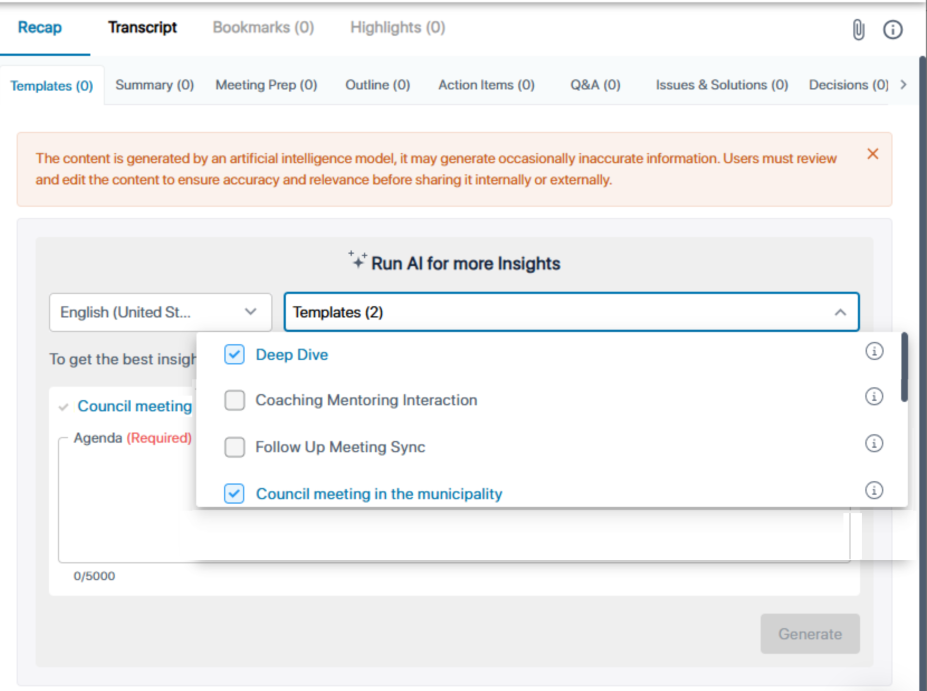
From the 'Templates' drop-down list, select one or more templates. |
Templates that you've recently used are listed first, under the Recently Used group. If you want to view more templates, click More Templates.
The folder icons of the template sectors indicate the type of template:
|
●
|
 Custom - tailor-made template for your organization. Custom - tailor-made template for your organization. |
|
●
|
 Limited - basic template. Limited - basic template. |
|
●
|
 Advanced - template with advanced features such as user-input fields. Advanced - template with advanced features such as user-input fields. |
To view a description of a template, hover your mouse over the information  icon.
icon.
|
5.
|
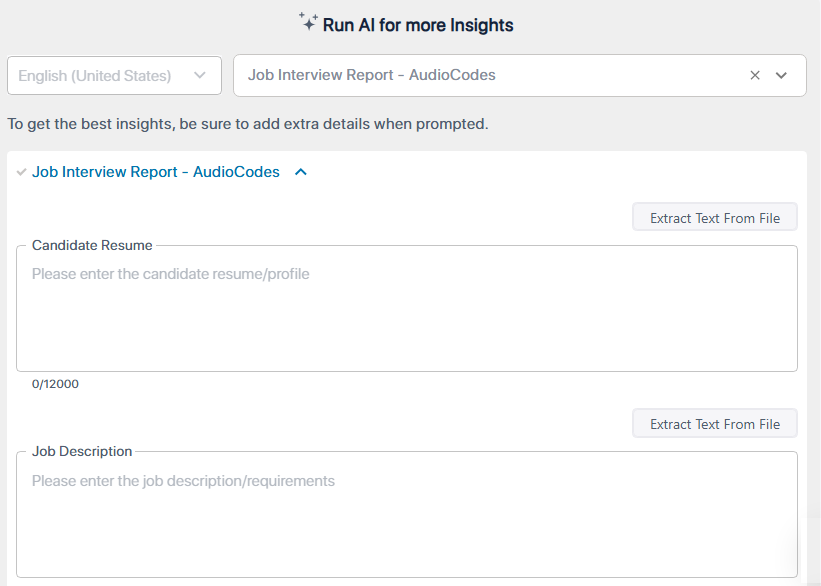
If you selected a template that contains user-input fields, they appear as text boxes. Some fields may be mandatory ('Required') while others optional (which you can leave empty if you want). The following figure shows an example of a template that contains the user-input fields 'Candidate Resume' and 'Job Description'. |
Instead of or in addition to typing in the fields, you can import text from a file:
|
a.
|
Click the Extract Text From File button. |
|
b.
|
Navigate to and select the file; the content of the file is added to the field. |
You can extract text from any of the following file types:
|
●
|
Microsoft Word file (.docx) |
|
6.
|
Click Generate; AI processes the summary and when finished, the summary appears. |
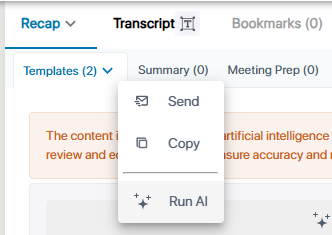
You can run the AI-powered summary again for the same template, or for additional or different templates. Simply click the down arrow on Templates, and then from the drop-down list, choose Run AI:
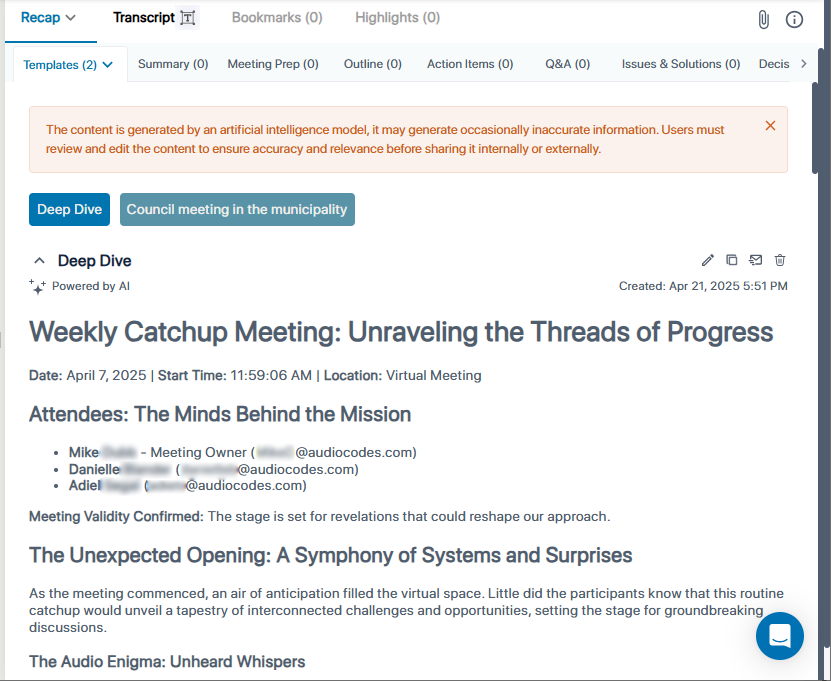
To view the generated summary, select the Recap tab, and then click Templates. If you generated a summary based on multiple templates, a tab is displayed for each template, as shown in the example below for the 'Deep Dive' and 'Council meeting in the municipality' templates. Simply click the tab of the summary-based template that you want to view.