Copy a Highlight to Your Clipboard
You can copy the transcription of a highlight to your computer's clipboard and then paste it wherever you want (for example, in an email).
Only the Owner, Co-owner, or users assigned editing privileges of the meeting recording can copy highlights.
|
➢
|
To copy a highlight to clipboard: |
|
1.
|
In the Navigation pane, go to any meeting recording list view that contains the recording you want. |
|
2.
|
Click the meeting recording name; the Player page appears. |
|
3.
|
Select the Highlights tab; the list of highlights are displayed. |
|
4.
|
Click the ellipsis  icon corresponding to the highlight (#1 in figure), and then from the drop-down menu, choose Copy (#2 in figure): icon corresponding to the highlight (#1 in figure), and then from the drop-down menu, choose Copy (#2 in figure): |
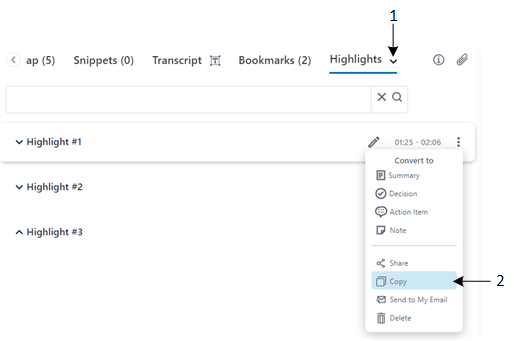
The highlight is copied to the clipboard.
|
5.
|
Paste the highlight in the desired application. |