Change the Speaker of a Highlight
Meeting Insights shows the participant that spoke during the highlight. However, sometimes more than one participant speaks during a highlight. In such a scenario, you may want to assign a different participant to the highlight. Typically, you would assign the participant who was the main speaker during the highlight.
|
➢
|
To assign a speaker to a highlight: |
|
1.
|
In the Navigation pane, go to any meeting recording list view that contains the recording you want. |
|
2.
|
Click the meeting recording name; the Player page appears. |
|
3.
|
Select the Highlights tab; the list of highlights are displayed. |
|
4.
|
Click the title of the highlight that you want; the highlight's transcription is displayed. Users can add titles to highlights to expedite access to specific meeting content. |
|
5.
|
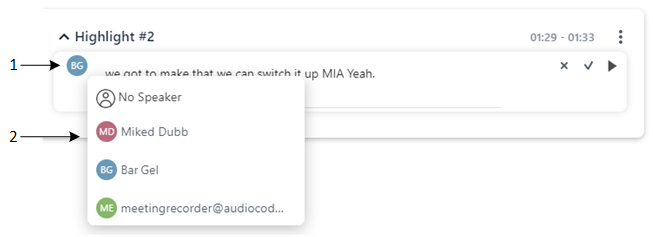
Right-click the transcription to enter the edit mode, and then click the currently assigned user profile icon (#1 in figure), as shown in the following example; a drop-down list appears (#2 in figure), displaying all the meeting recording's participants: |
|
6.
|
Select the participant that you want to assign to the highlight, and then click to apply your changes. to apply your changes. |