Show or Hide Timestamps of Highlights
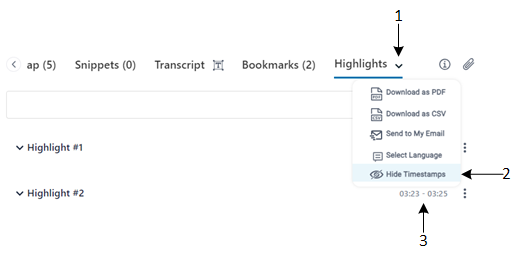
By default, each highlight displays the time (timestamp) in the video where it was added (see #3 in figure). To avoid clutter, you can hide these timestamps.
| ➢ | To hide or show timestamps of highlights: |
| 1. | In the Navigation pane, go to any meeting recording list view that contains the recording you want. |
| 2. | Click the meeting recording name; the Player page appears. |
| 3. | Select the Highlights tab. |
| 4. | Click the arrow (#1 in figure) on the Highlights tab, and then from the drop-down menu, choose Hide Timestamps (#2 in figure) to hide timestamps (#3 in figure), or Show Timestamps to display them: |