Rename a Highlight
By default, Meeting Insights names highlights as "Highlight #<consecutive number>" (e.g., "Highlight #1", "Highlight #2", and so on). However, you can rename a highlight if you want.
Only the Owner, Co-owner, or users assigned editing privileges of the meeting recording can rename highlights.
|
1.
|
In the Navigation pane, go to any meeting recording list view that contains the recording you want. |
|
2.
|
Click the meeting recording name; the Player page appears. |
|
3.
|
Select the Highlights tab; the list of highlights are displayed. |
|
4.
|
Hover over the highlight you want, and then click  : : |
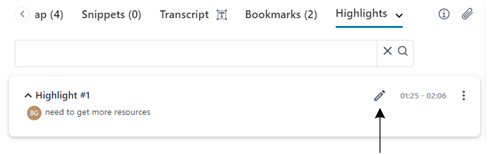
|
5.
|
Type a new title for the highlight, and then click Rename. |