Add an Action Item Manually
You can add action items per meeting recording.
|
1.
|
In the Navigation pane, go to any meeting recording list view that contains the recording you want. |
|
2.
|
Click the meeting recording name; the Player page appears. |
|
3.
|
Select the Recap tab, and then click Action items. |
|
4.
|
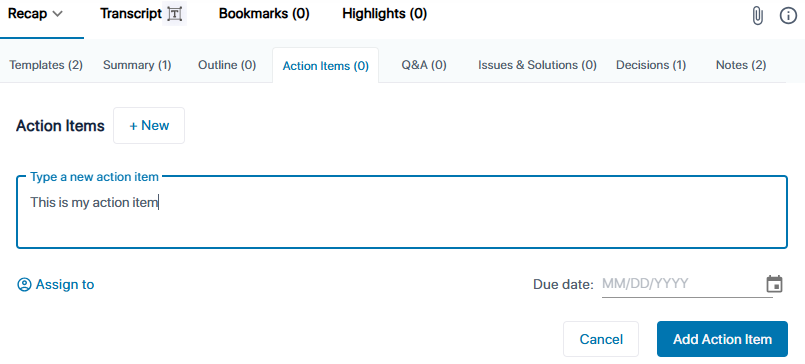
Click the New button, and then in the text box, type the task that needs to be done: |
|
5.
|
If you want to assign the task to someone, click  Assign to, and then from the drop-down list, choose the listed participant (or click Add user to choose a non-participant, and then click Assign). Assign to, and then from the drop-down list, choose the listed participant (or click Add user to choose a non-participant, and then click Assign). |
|
6.
|
If you want to assign the task a due date, click  , and then select the date from the displayed calendar. , and then select the date from the displayed calendar. |
|
7.
|
Click Add Action Item. |