Send Recap to Salesforce
You can send a meeting recording's AI-generated summary directly to your organization's Salesforce platform. This ensures key discussion points from your sales meetings are readily accessible in Salesforce, and helps you keep opportunities up to date. You choose which Salesforce objects and fields to update with the summary.
|
●
|
Integration with Salesforce is available only if enabled by your Meeting Insights administrator. |
|
●
|
You can send only the following AI-generated summary types of a meeting recording to Salesforce: |
|
✔
|
Template-based summaries |
|
●
|
The available Salesforce objects are determined by your Meeting Insights administrator. The following Salesforce objects might be available: |
|
●
|
To send a summary, you first need to sign in to your organization's Salesforce account. This connection stays active for 24 hours, so you won't need to sign in again for other summaries you send during that period. |
|
●
|
A Salesforce icon next to the summary shows the integration status: |
 Meeting Insights is integrated with Salesforce.
 An AI-powered summary has been generated for the meeting recording and you can send it to Salesforce.
 The AI-generated summary has been sent to Salesforce.
|
●
|
Only the Owner, Co-owner, or users assigned editing privileges to the meeting recording can send the summary to Salesforce. |
|
➢
|
To send an AI-generated summary to Salesforce: |
|
1.
|
In the Navigation pane, click  All meetings, and then click the meeting recording you want; the Player page opens. |
|
2.
|
Select the Recap tab, and then click Templates or Summary, depending on whether you want to send a template-based summary or a standard summary. |
|
3.
|
Click the Menu  icon (three vertical dots), and then from the drop-down menu, choose Update Salesforce . |
|
4.
|
If you haven't sent a summary to Salesforce in the last 24 hours, you're prompted to sign in to you're organization's Salesforce. Enter your Salesforce credentials, and then click Log In. |
When Meeting Insights connects to Salesforce, the Salesforce Update dialog box appears.
|
5.
|
From the 'Update Level' drop-down list, select the Salesforce object you want to update (e.g., Contact). The Salesforce object fields associated with the selected object appear. For example, if you select Contact, the Accounts and Contacts fields appears. |
|
6.
|
From the drop-down list for each field (e.g., Accounts and Contacts), select the Salesforce field you want to update with the summary. |
Below shows an example for updating the Contact object with the summary in Salesforce:
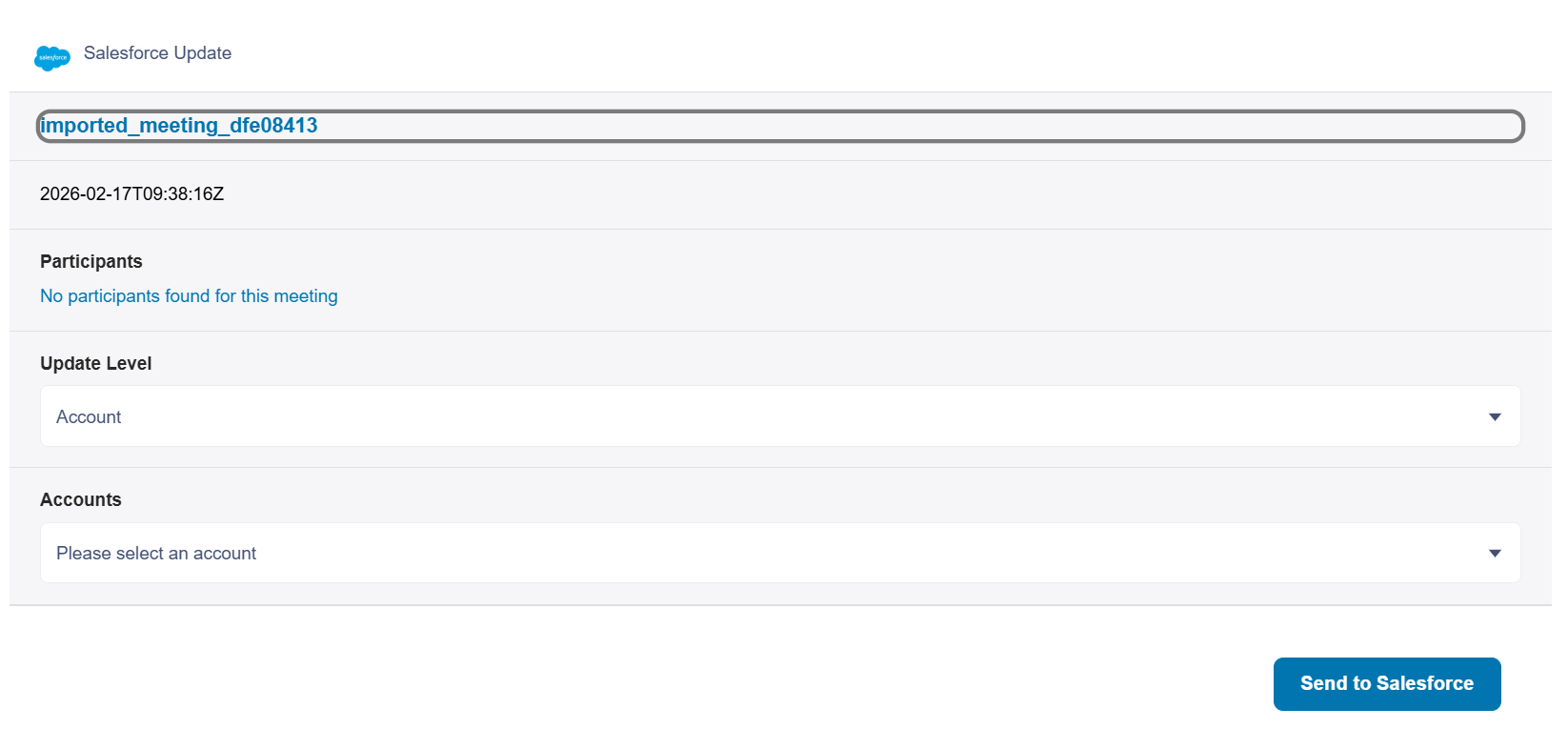
If your Meeting Insights administrator has specified additional Salesforce fields to help you identify Accounts or Opportunities, their drop-down lists show this field value after a hyphen. For example, if the administrator adds a region field for Accounts, Accounts might appear as CompanyA - Switzerland and CompanyA - Japan.
|
7.
|
Click Send to Salesforce; Meeting Insights sends the summary to Salesforce and adds it to the selected field. The Salesforce icon next to the summary you sent is now displayed as . |