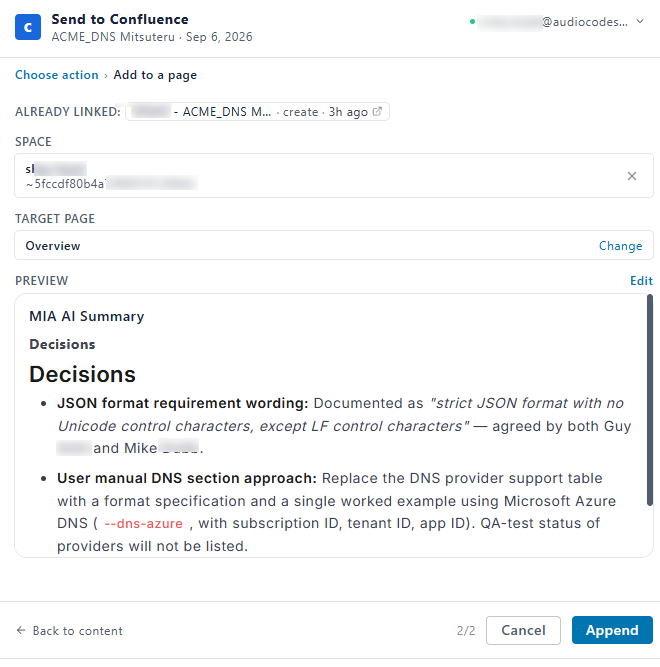
Send Recap to Confluence
You can send recap content from a meeting recording to your organization's Confluence so that decisions and follow-up work are tracked with the rest of your project.
You can send the following recap content:
|
■
|
MIA AI Summary: The AI-generated, template-based summary. Available only if you created a summary for the meeting recording. |
|
■
|
Action items: Available only if you created action items for the meeting recording. |
You can send all the content of each type or only specific sections and items. You can review and edit the content before you send it.
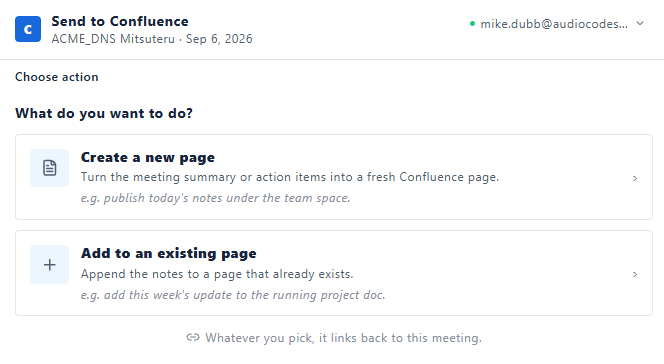
You can update Confluence with the recap content in the following ways:
All Confluence procedures start from the Send to Confluence pane. To open the pane, see Open the Send to Confluence Pane.
|
●
|
Integration with Confluence is available only if enabled by your Meeting Insights administrator. |
|
●
|
Only the owner, co-owners, and users with editing permissions for the meeting recording can send its recap to Confluence. |
|
1.
|
Click Create a new page; the New page section appears. |
|
2.
|
Under Choose content, select the Mia AI Summary or Action Items content that you want to include. |