Send Recap to Zoho
Meeting Insights offers seamless integration with your Zoho Projects for managing action items. Instead of managing them in Meeting Insights, you can send action items directly to Zoho for continued tracking and updates.
When sending an action item to Zoho, you need to select the Zoho Project and the Task List in the Project where the action item should be added. You can choose to send a specific action item to Zoho, or send all action items from the meeting recording to Zoho.
|
●
|
Integration with Zoho is available only if enabled by your Meeting Insights administrator. |
|
●
|
Changes made to the action item in Meeting Insights are not reflected in Zoho, and vice versa. |
|
●
|
Only the owner of the meeting recording can send action items to Zoho. |
|
➢
|
To send an action item to Zoho: |
|
1.
|
In the Navigation pane, click  All meetings. |
|
2.
|
Click the meeting recording name; the Player page appears. |
|
3.
|
Select the Recap tab, and then click Action Items. |
|
4.
|
Choose the action items to send: |
|
●
|
All action items: Click the ellipsis  icon next to Action Items, and then from the drop-down menu, choose  Send to Zoho. |
|
●
|
Specific action item: Click the ellipsis icon of the action item, and then from the drop-down menu, choose Send to Zoho. |
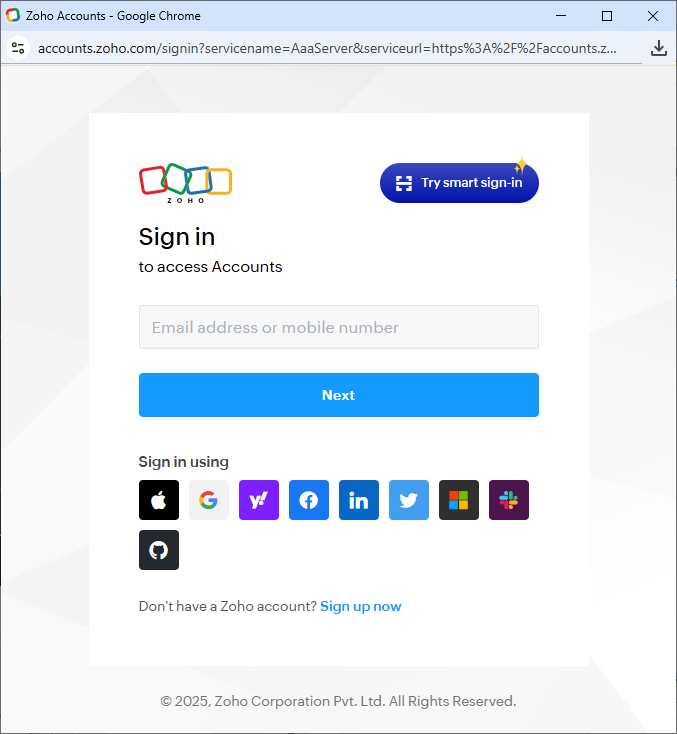
You're redirected to the Zoho website for signing in to your Zoho account:
|
5.
|
Sign in to your Zoho account with your Zoho account credentials; you're prompted to approve Meeting Insights access to certain information in your Zoho account: |
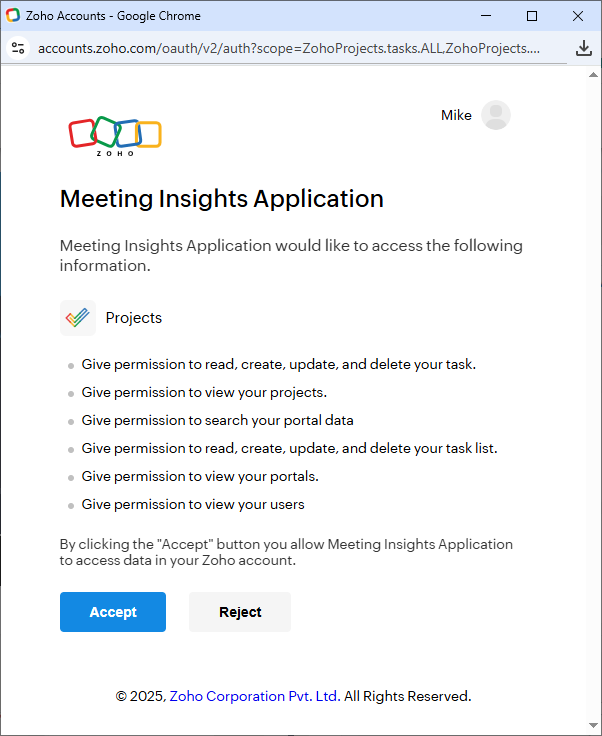
The consent dialog box appears only upon the initial sending of action items to Zoho. You're not prompted again to consent for subsequent sending of action items to Zoho.
|
6.
|
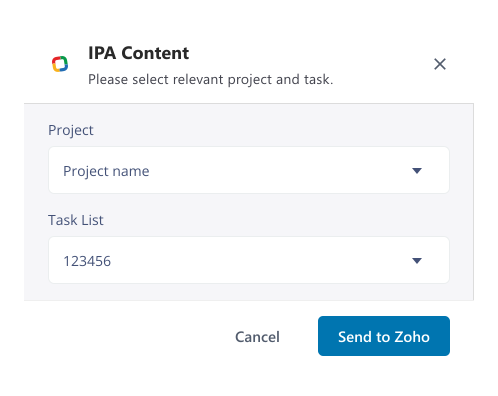
Click Accept to consent; the following dialog box appears: |
|
7.
|
Define where in Zoho you want to send the action item: |
|
a.
|
From the 'Project' drop-down list, select the Project in your Zoho account that contains the Task List where you want to send the action item. |
|
b.
|
From the 'Task List' drop-down list, select the Task List of the selected Project. |
|
8.
|
Click Send to Zoho; Meeting Insights sends the action item to Zoho. A Zoho icon with a check mark  appears next to each action item that you've sent. |
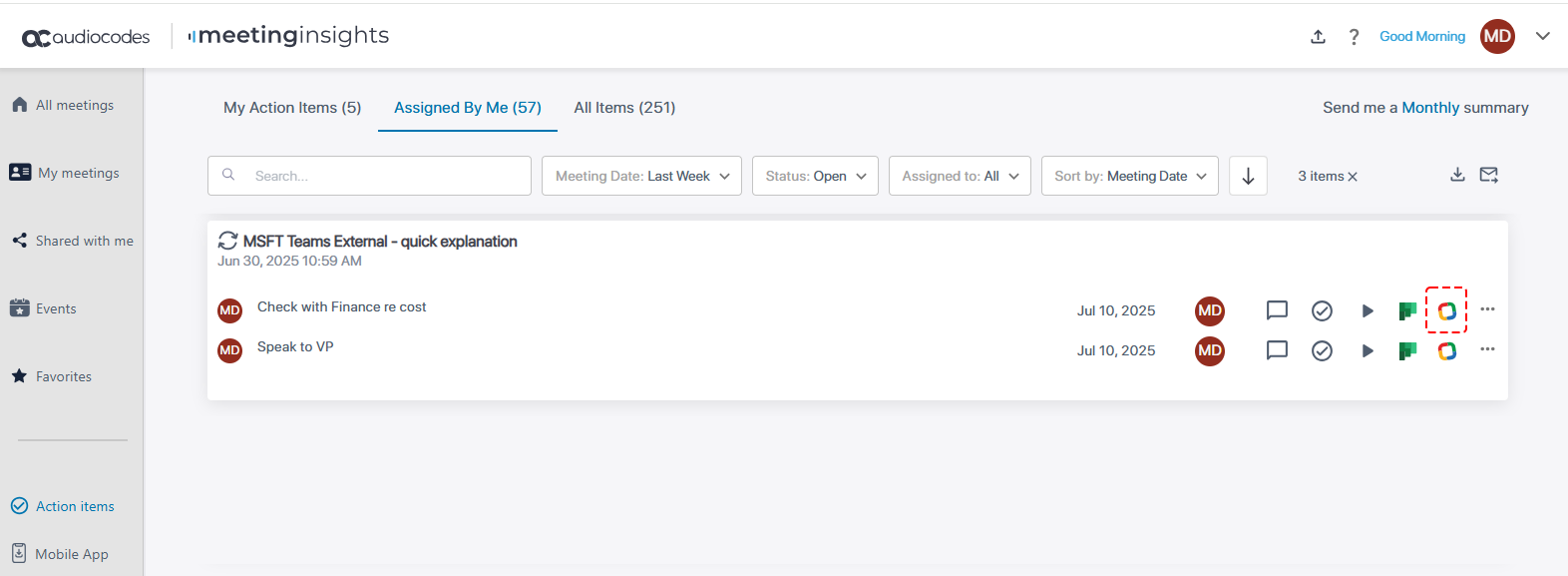
You can also send action items from the Action Items page:
|
1.
|
In the Navigation pane, click  Action items. |
|
2.
|
Click the icon of the action item: |
|
3.
|
Follow the instructions above for sending action items on the Player page. |