Send an Action Items to Microsoft Planner
You can send an action item from Meeting Insights to Planner and then use Planner to manage the action item instead of Meeting Insights. Once exported, all subsequent management of that action item (editing and deleting) can only be done through Planner.
|
●
|
Modifying or deleting the action item in Planner is not reflected in Meeting Insights. |
|
➢
|
To export an action item to Microsoft Planner: |
|
1.
|
In the Navigation pane, click  All meetings. |
|
2.
|
Click the meeting recording name; the Player page appears. |
|
3.
|
Select the Recap tab, and then click Action Items. |
|
4.
|
Choose the action items to send: |
|
●
|
All action items: Click the ellipsis  icon next to Action Items, and then from the drop-down menu, choose  Send to Planner. |
|
●
|
Specific action item: Click the ellipsis icon of the action item, and then from the drop-down menu, choose Send to Planner. |
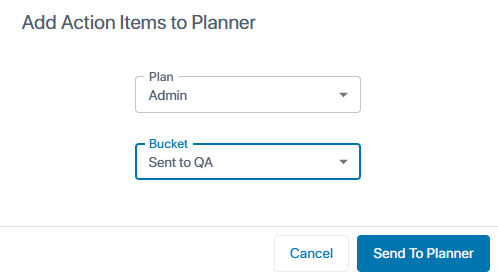
The following dialog box appears:
|
a.
|
From the 'Plan' drop-down list, select a plan. |
|
b.
|
From the 'Bucket' drop-down list, select a bucket. |
|
c.
|
Click Send To Planner; Meeting Insights sends the action item to Planner. A Planner icon with a lock  appears next to each action item that you've sent. |
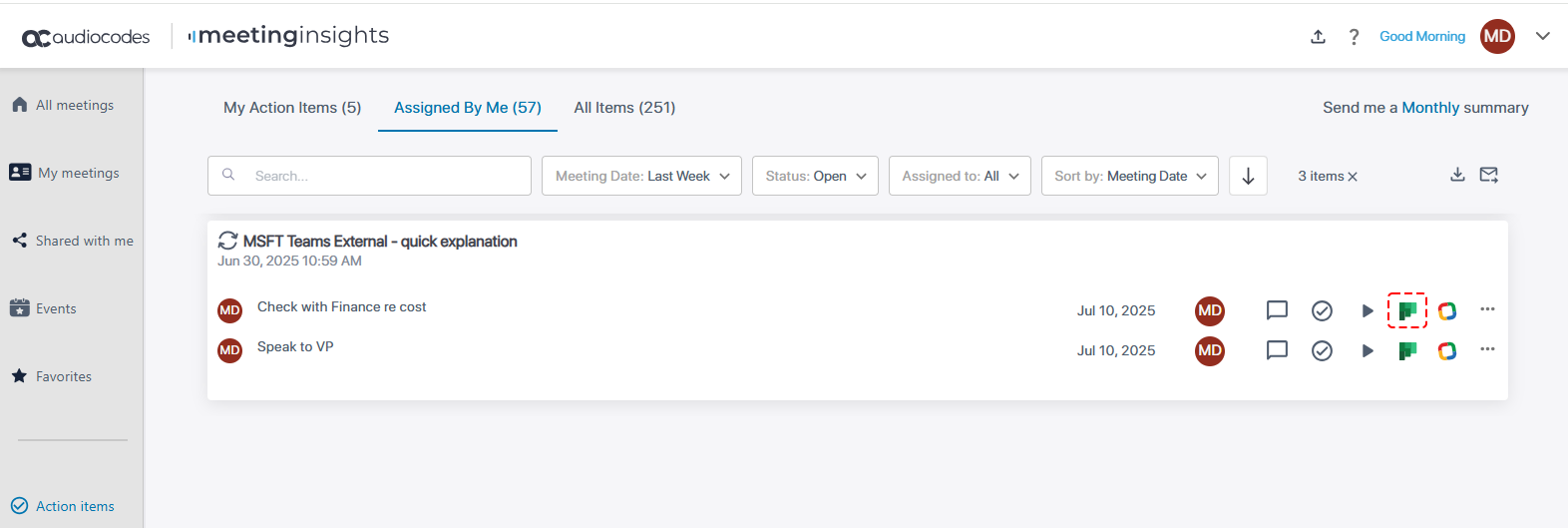
You can also send action items from the Action Items page:
|
1.
|
In the Navigation pane, click  Action items. |
|
2.
|
Click the icon of the action item: |
|
3.
|
Follow the instructions above for sending action items on the Player page. |