Send Recap Content to an Existing Confluence Page
You can send a meeting recording's recap content to an existing Confluence page. Before selecting the page, you need to select the Confluence space where the page is located.
You choose which summary sections and action items to send, and you can preview and edit the content before you send it.
|
➢
|
To send recap content to an existing Confluence page: |
|
2.
|
Click Add to an existing page; the Add to a page section appears. |
|
3.
|
Under Choose content, select the content to send: |
|
●
|
To include all content of a type, select the check box of MIA AI Summary or Action items. |
|
●
|
To include specific content, click the content type to expand it, and then select the sections or items. |
|
5.
|
From the 'Space' drop-down list, select the Confluence space where the page is located. |
|
6.
|
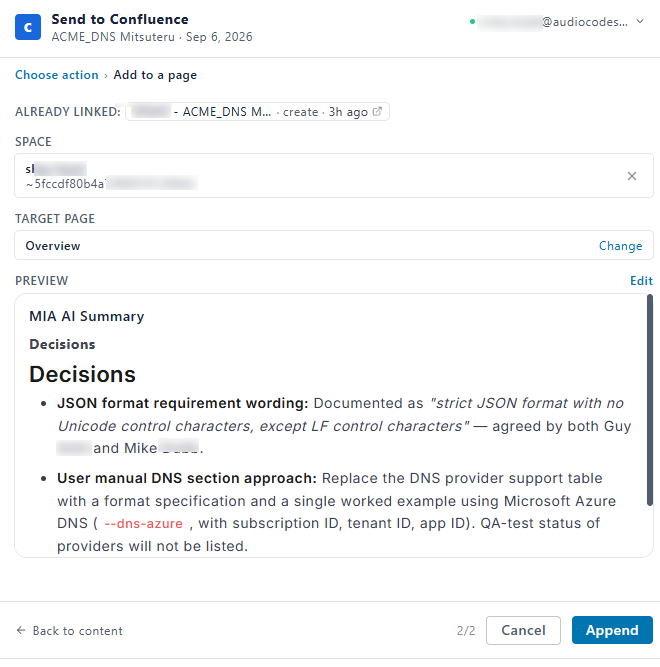
Under Target Page, select the Confluence page where you want to add the content. To change the page, click Change, and then select a different page. |
|
7.
|
Under Preview, review the content. To modify the content, click Edit. |
|
8.
|
Click Append; Meeting Insights sends the content to the specified Confluence page. The Confluence  icon is displayed with the meeting recording in the list view. |
The following shows example settings for sending the recap content to an existing Confluence page: