Send a Recap to HubSpot as a Note or Meeting
You can send the AI-generated recap of a recorded meeting - its bullets, summary, and action items - to a HubSpot company, deal, or contact. Meeting Insights adds the content to the record's activity timeline as a note or a meeting.
|
➢
|
To send a recap to HubSpot as a note or meeting: |
|
2.
|
Select the Summary tab. |
|
3.
|
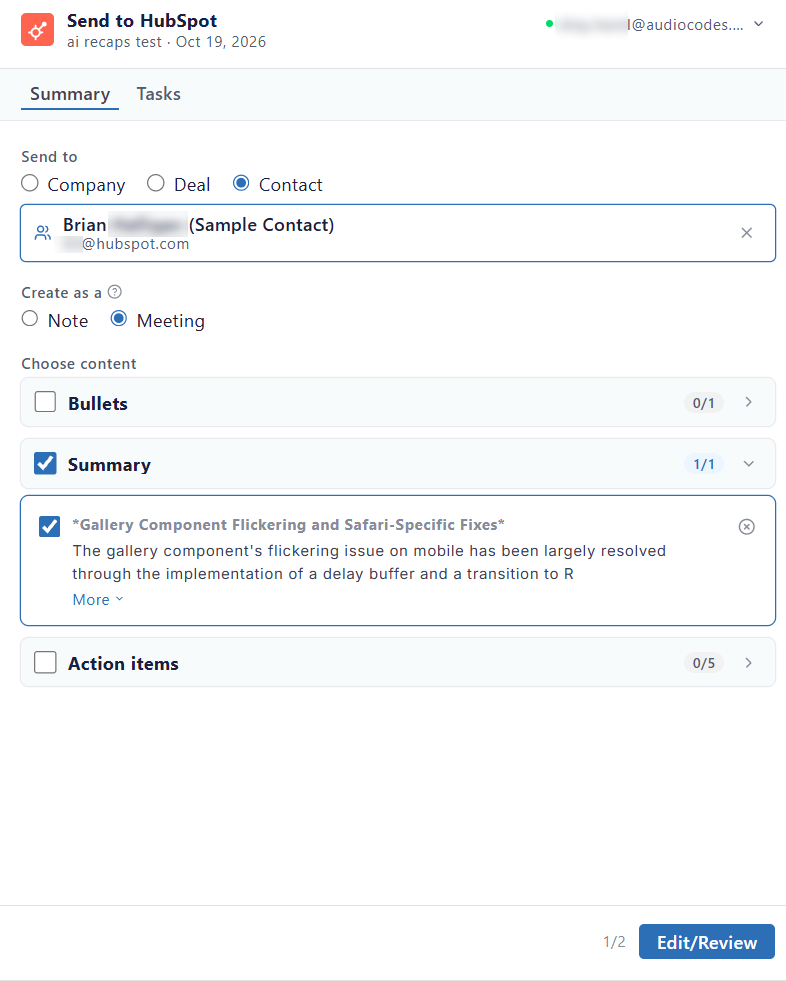
Under Send to, select the type of HubSpot record that you want to send the content to: Company, Deal, or Contact. |
|
4.
|
In the search box, enter the name of the company, deal, or contact, or enter the contact's email address. Then select the record from the results. |
|
5.
|
Under Create as a, select how to add the content to the record: |
|
●
|
Note: Adds the content as a note. |
|
●
|
Meeting: Adds the content as a meeting. |
|
6.
|
Under Choose content, select the content that you want to send: |
|
●
|
To include or exclude a whole section (Bullets, Summary, or Action items), select or clear the checkbox next to the section name. The counter on the section (for example, 1/1) shows how many of its items you've selected. |
|
●
|
To include or exclude a single item, select or clear its checkbox. |
|
●
|
To read the full text of an item, click More. |
|
●
|
To expand or collapse a section, click the arrow on the right side of the section. |
|
●
|
To remove an item from the content, click the remove icon next to the item. |
The following figure shows an example of sending a recap as a meeting to a HubSpot contact:
|
8.
|
Review the content, and edit it if needed. |
|
9.
|
Click Send to HubSpot. |
Meeting Insights adds the content as a note or meeting to the activity timeline of the HubSpot record that you selected. In the list view, the HubSpot  icon appears with the meeting recording.