Send Action Items to HubSpot as Tasks
You can send action items from a recorded meeting to a HubSpot company, deal, or contact. Each action item that you select becomes a task on that record. Before you create the tasks, you can edit their titles and add a description, due date, owner, and priority to each one.
| ➢ | To send action items to HubSpot as tasks: |
| 1. | Open the Send to HubSpot dialog for the meeting recording (see Open the Send to HubSpot Dialog). |
| 2. | Select the Tasks tab. |
| 3. | Under Send to, select the type of HubSpot record that you want to create the tasks on: Company, Deal, or Contact. |
| 4. | In the search box, enter the name of the company, deal, or contact, or enter the contact's email address. Then select the record from the results. |
| 5. | Under Select action items, select the checkbox of each action item that you want to send as a task. Clear the checkbox of any item that you don't want to send. The counter next to Select action items (for example, 1/1) shows how many items you've selected. |
| 6. | Click Edit/Review. |
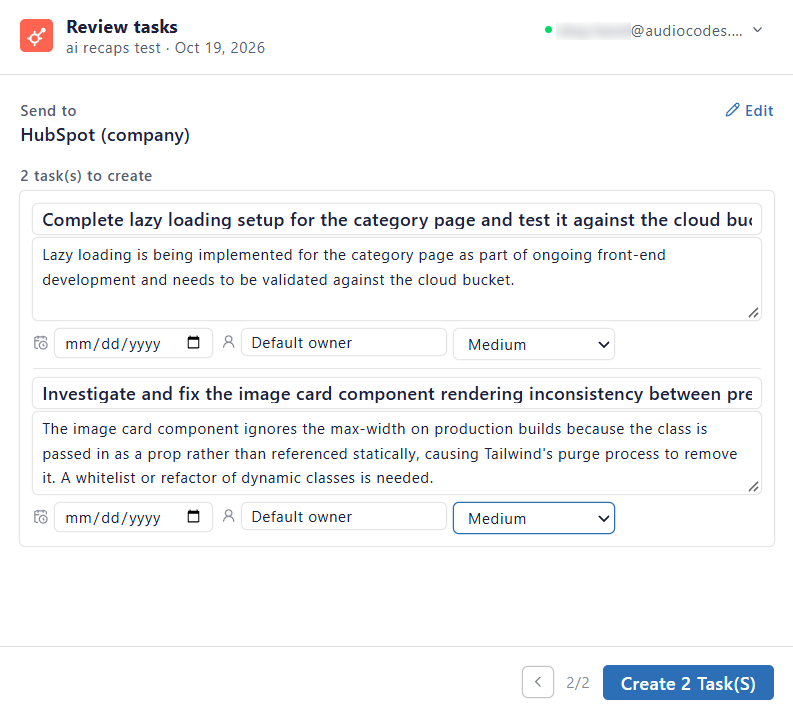
The Review tasks page appears. It shows the HubSpot record that you selected and the number of tasks to create.
| 7. | For each task, configure the following fields: |
|
Field |
Description |
|---|---|
|
Title |
The name of the task. By default, it's the text of the action item. |
|
Description |
(Optional) More details about the task. |
|
Due date |
(Optional) The date by which the owner needs to complete the task. Enter the date in mm/dd/yyyy format, or click the calendar icon and select a date. |
|
Owner |
The HubSpot user who's responsible for the task. |
|
Priority |
(Optional) The priority of the task: None, Low, Medium, or High. |
The following figure shows an example of two tasks:
| 8. | Click Create n Task(s), where n is the number of tasks. |
Meeting Insights creates the tasks on the HubSpot record that you selected. In the list view, the HubSpot  icon appears with the meeting recording.