Create a Jira Issue from New AI-Generated Recap Content
Mia, the Meeting Insights AI assistant, can write a new Jira issue for you based on the meeting summary, action items, and transcript. Mia determines the fields of the new Jira issue, such as the title, description, and priority. To get the results you want, you can guide Mia with a prompt that describes what to focus on, what to leave out, and how to structure the content. If you aren't satisfied with the result, you can change your prompt and have Mia generate the content again (re-steer). You can also edit the content and fields yourself before you create the issue.
|
➢
|
To create a Jira issue with AI-generated content: |
|
2.
|
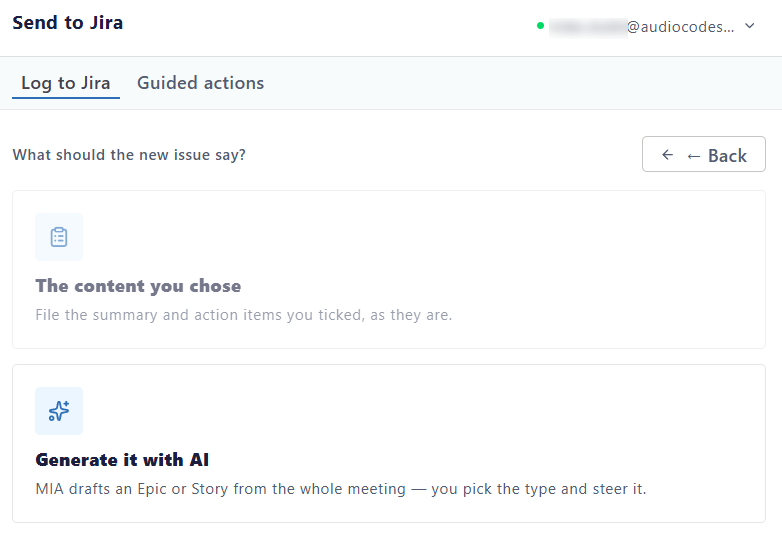
On the Log to Jira tab, click New Ticket; the following appears: |
|
3.
|
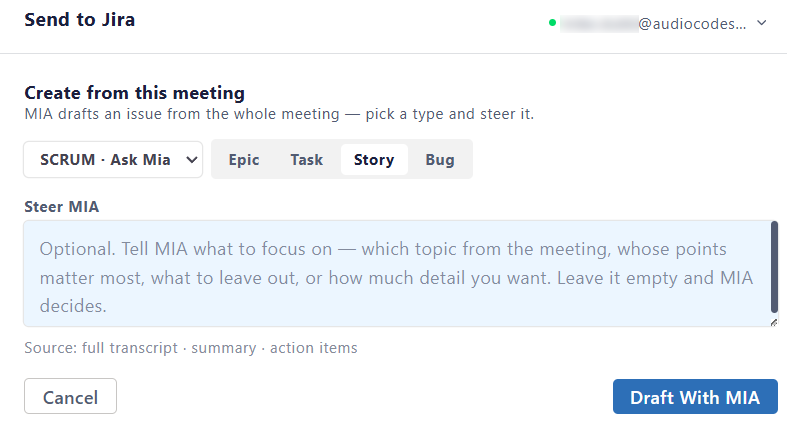
Select Generate it with AI. The Create from this meeting dialog box appears: |
|
4.
|
Select the Jira project. |
|
5.
|
Select the issue type (Epic, Task, Story, or Bug). |
|
6.
|
(Optional) In the Steer MIA box, type a prompt to guide Mia in generating the content. If you leave the box empty, Mia decides what content the issue needs. Clear instructions help Mia produce accurate content. Consider including: |
|
●
|
What to focus on: Topics, decisions, or requirements that matter for this issue. |
|
●
|
What to leave out: Unrelated discussion, small talk, or topics tracked elsewhere. |
|
●
|
Structure: Headings or sections your team expects, such as acceptance criteria. |
|
●
|
Tone and length: For example, "Be brief and use bullet points." |
For example, for a bug: "Describe the reported problem, the steps to reproduce it, the expected and actual behavior, and the impact on customers. Leave out unrelated topics."
|
7.
|
Click Draft With MIA. Mia generates the content for the new Jira issue. When it finishes, the content and issue fields are displayed: |
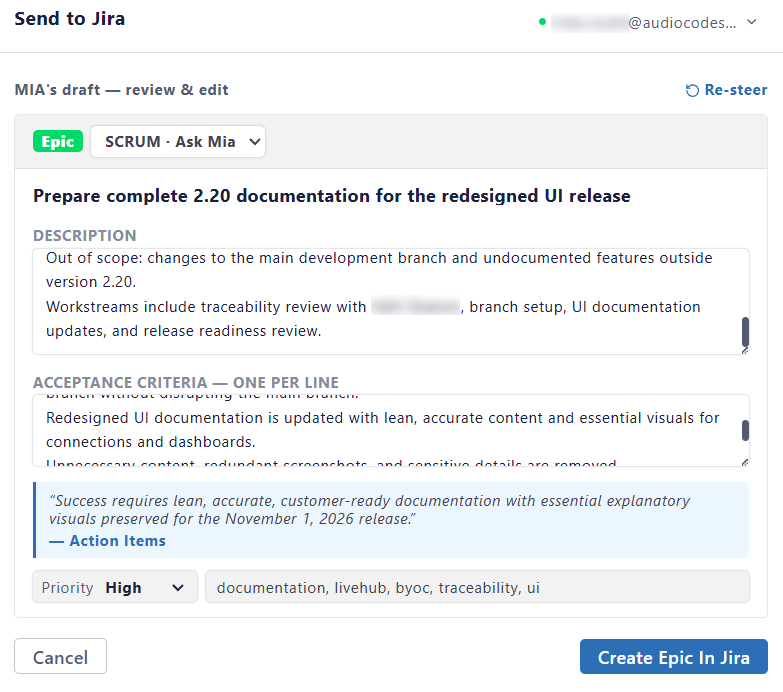
AI-generated content can contain errors or missed details. Always review it before you create the issue.
|
8.
|
Review the content, and edit it as needed. |
|
9.
|
(Optional) To have Mia regenerate the content with different instructions: |
|
a.
|
Click Re-steer; You're returned to the Create from this meeting dialog box. |
|
b.
|
In the 'Steer MIA' box, change your prompt. |
|
c.
|
Click Draft With MIA; Mia reanalyzes the meeting and generates new content. |
|
d.
|
Repeat until the content meets your needs. |
|
10.
|
(Optional) To change the priority that Mia assigned, select a different priority from the Priority list. |
|
11.
|
(Optional) To change the labels, click the box next to the Priority list, and then add or remove labels. |
|
12.
|
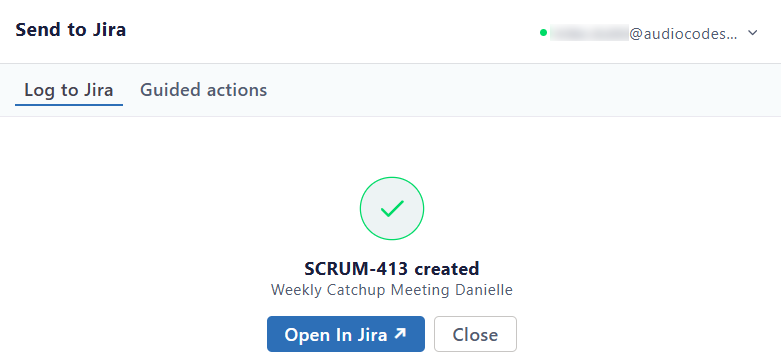
Click Create <issue type> In Jira. Meeting Insights creates the issue and displays its key and name: |
|
13.
|
(Optional) To open the issue in Jira, click Open in Jira. |