Use Guided Actions to Update Jira from a Recap
The Guided actions tab uses AI to decide how a meeting should be reflected in Jira. Mia, the AI assistant, analyzes the meeting summary, transcript, and action items to identify decisions, updates, blockers, and new work. Mia then matches this content to your Jira issues and suggests which existing issues to update and which new issues to create.
When you run Guided actions on a meeting recording, the following occurs:
|
■
|
Mia analyzes the meeting: Mia reviews the full meeting record, including the summary, transcript, and action items, to identify decisions, updates, blockers, and new work. |
|
■
|
Mia matches the content to Jira: Mia compares the meeting content with your Jira issues to determine where each item belongs. |
|
■
|
Mia recommends actions: Mia presents a list of suggestions, each tied to the specific content that it applies to: |
|
●
|
Update an existing Jira issue: Add progress, decisions, or context to an issue that's already tracked in Jira. |
|
●
|
Create a new Jira issue: Open a new issue for work, tasks, or problems that the meeting raised and that no existing issue covers. |
|
■
|
You review, refine, or ignore each suggestion: |
|
●
|
Apply it as proposed, or change it first. For example, you can create a new issue instead of updating an existing one, or select a different existing issue. |
|
●
|
Ignore (skip) it if it isn't relevant. |
|
●
|
Refine it by writing a prompt for Mia that describes what to focus on or what to leave out, for example, "Focus only on the decisions about the release timeline" or "Leave out the budget discussion." Mia then reanalyzes the meeting summary, transcript, and action items according to your prompt and generates a new set of suggestions. You can refine the suggestions as many times as you need. |
|
●
|
You confirm it: Nothing changes in Jira until you approve the suggestions. |
AI-generated suggestions can contain errors or missed details. Always review them before you update Jira.
|
➢
|
To update Jira by using Guided Actions: |
|
2.
|
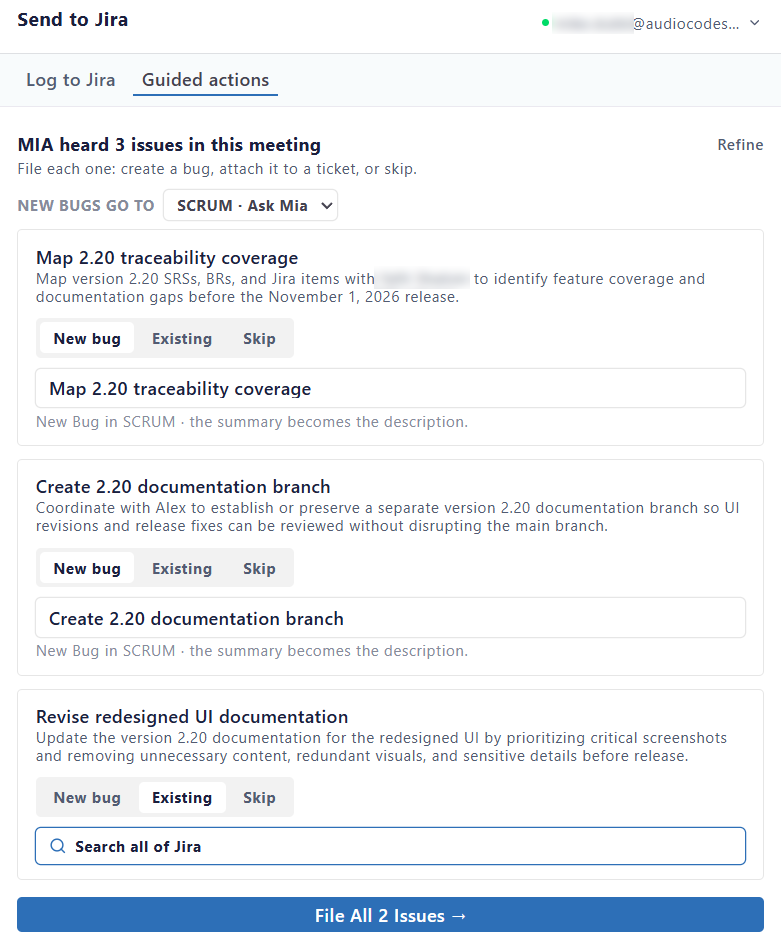
Select the Guided actions tab. Mia analyzes the meeting and displays its suggestions, as shown in the following example: |
|
3.
|
Review each suggestion. To change the suggested action, select one of the following options: |
|
●
|
New: Creates a new Jira issue. The box below the option shows the suggested issue title. |
|
●
|
Existing: Adds the content to an existing Jira issue. The box below the option shows related issues, or you can search for a different issue. |
|
●
|
Skip: Ignores the suggestion. |
|
4.
|
(Optional) To refine the suggestions: |
|
a.
|
Click Refine; a text box appears. |
|
b.
|
In the text box, type instructions for Mia. |

|
c.
|
Click Re-Scan With Focus; Mia reanalyzes the meeting according to your instructions and displays new suggestions. |
|
d.
|
Repeat the refine process as needed. |
|
5.
|
Click File All Issues; Meeting Insights updates and creates the Jira issues for all suggestions that you didn't skip. |