Create a Jira Issue from the Existing Recap Content
You can create a new Jira issue from the recap content you select. The meeting recording name becomes the issue title, and the selected content becomes the issue description.
To have Mia write the Jira issue for you instead, see Create a Jira Issue from New AI-Generated Recap Content.
|
➢
|
To create a Jira issue from the existing recap content: |
|
2.
|
On the Log to Jira tab, under Choose content, select the content to include: |
|
●
|
To include all content of a type, select the check box of MIA AI Summary or Action items. |
|
●
|
To include specific content, click the content type to expand it, and then select the sections or items. |
|
3.
|
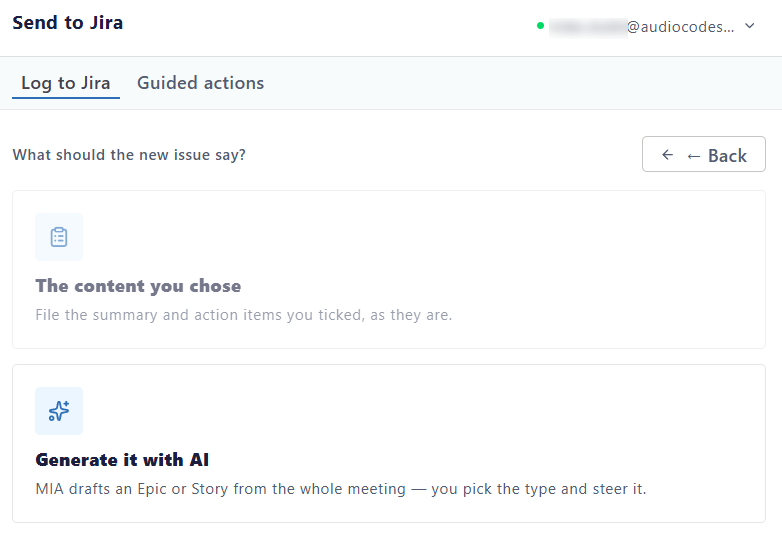
Click New Ticket; the following appears: |
|
4.
|
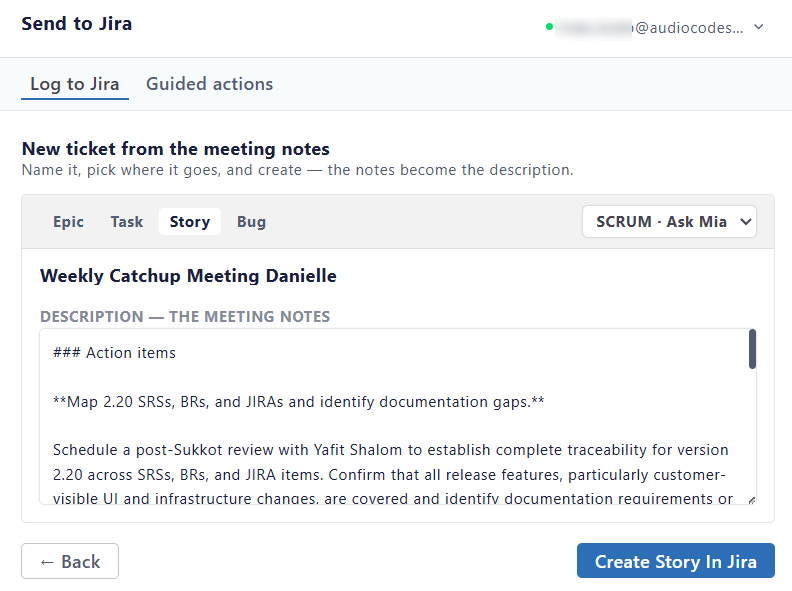
Select The content you chose; the following appears: |
|
5.
|
Select the issue type - Epic, Task, Story, or Bug. |
|
6.
|
Select the Jira project. |
|
7.
|
Review the content and edit if needed. |
|
8.
|
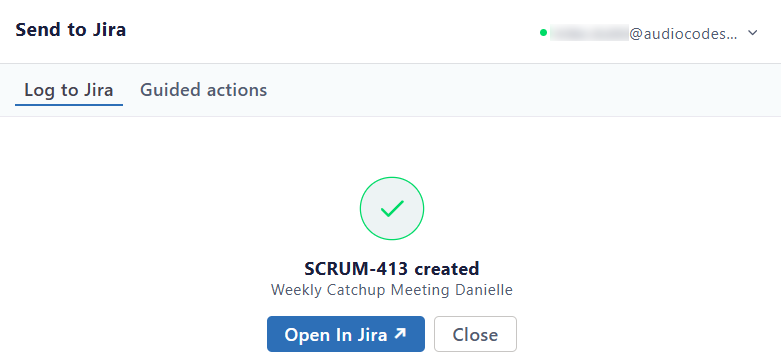
Click Create <issue type> In Jira. Meeting Insights creates the issue and displays its key and name: |
|
9.
|
(Optional) To open the issue in Jira, click Open in Jira. |