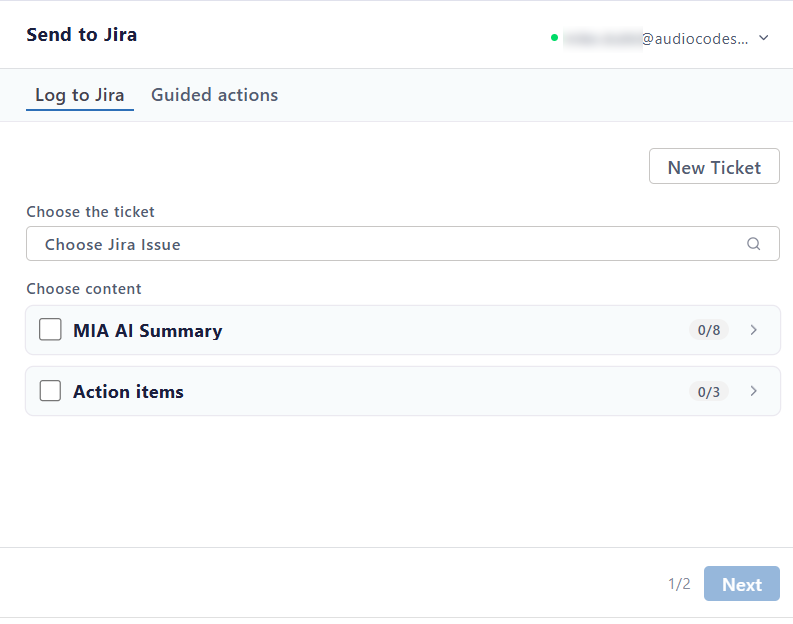
Open the Send to Jira Pane
All Jira procedures start from the Send to Jira pane. The first time you open it, you're asked to connect Meeting Insights to your Atlassian account.
|
➢
|
To open the Send to Jira pane: |
|
1.
|
In the Navigation pane, click  All meetings. |
|
2.
|
Click the ellipsis  icon of the meeting recording, and then choose  Send to Jira. |
If this is the first time you're sending a recap to Jira, the Connect to Jira pane appears. Do the following:
|
a.
|
Click Sign in to Jira. |
|
b.
|
Click Accept to allow Meeting Insights to access, view, and update Jira work in your Atlassian account. |
The Send to Jira pane appears: